
Configuration
Logchef uses a minimal TOML configuration file for bootstrap settings, with runtime configuration managed through the Admin Settings UI. This guide explains the essential configuration options and how to manage non-essential settings through the web interface.
Configuration Architecture
Section titled “Configuration Architecture”Logchef separates configuration into two categories:
Essential (Bootstrap) Settings - Required in config.toml:
- Server connection details (port, host)
- SQLite database path
- OIDC authentication credentials
- Admin user emails and API token secrets
- Logging configuration
Runtime Settings - Managed via Admin Settings UI:
- Alerting configuration (SMTP settings, intervals, timeouts)
- AI/LLM settings (API keys, models, endpoints)
- Session management (duration, concurrency)
- Frontend URL (public URL of the web UI)
On first boot, Logchef seeds the database with values from config.toml. After that, runtime settings are stored in the database and managed through the Admin Settings UI at Administration → System Settings.
Essential Configuration
Section titled “Essential Configuration”These settings must be present in config.toml for Logchef to start:
Server Settings
Section titled “Server Settings”Configure the HTTP server and frontend settings:
[server]# Port for the HTTP server (default: 8125)port = 8125
# Host address to bind to (default: "0.0.0.0")host = "0.0.0.0"
# Public URL of the web UI, e.g. "https://logs.example.com". Used for login# redirects and share links. To serve Logchef under a subpath, include it:# "https://example.com/logchef". See Operations → Reverse Proxy.frontend_url = ""
# HTTP server timeout for requests (default: 30s)http_server_timeout = "30s"
# Trusted reverse-proxy IPs/CIDRs for client-IP resolution. Empty (default)# trusts no proxy — the client IP is the direct connection peer. Set to your# reverse proxy's address(es) to resolve the real client from proxy_header.trusted_proxies = []# Forwarding header read for the client IP, ONLY when the direct peer is one of# trusted_proxies (otherwise ignored, so untrusted callers can't spoof it).proxy_header = "X-Forwarded-For"
# Canonical external origin of this instance, for example# "https://logs.example.com". Required when [auth.oauth] is enabled.# Origin only: scheme, host, and optional port. No path, no trailing slash.# Must be https, except on localhost, 127.0.0.1, or ::1.public_url = ""
# Origin that browsers use for the OAuth sign-in pages, when it differs from# public_url. Optional. Same rules as public_url. Unset means public_url.browser_url = ""
public_url is separate from frontend_url. frontend_url builds links in the UI and can include a subpath. public_url is the OAuth issuer. Logchef OAuth does not work under a subpath.
To run Logchef under a subpath such as https://example.com/logchef/, refer to
Reverse Proxy.
Database Configuration
Section titled “Database Configuration”SQLite database settings for storing metadata:
[sqlite]# Path to the SQLite database filepath = "logchef.db"Authentication
Section titled “Authentication”OpenID Connect (OIDC)
Section titled “OpenID Connect (OIDC)”Configure your SSO provider (example using Dex):
[oidc]# URL of your OIDC providerprovider_url = "http://dex:5556/dex"
# Authentication endpoint URL (Optional: often discovered via provider_url)auth_url = "http://dex:5556/dex/auth"
# Token endpoint URL (Optional: often discovered via provider_url)token_url = "http://dex:5556/dex/token"
# OIDC client credentialsclient_id = "logchef"client_secret = "logchef-secret"
# Callback URL for OIDC authentication# Must match the URL configured in your OIDC providerredirect_url = "http://localhost:8125/api/v1/auth/callback"
# Required OIDC scopesscopes = ["openid", "email", "profile"]
# Keep false unless your OIDC provider omits email_verified while verifying# email addresses by other means. Missing/null email_verified is allowed only# when this is true; explicit email_verified=false is always rejected.skip_email_verified_check = false
oidc.skip_email_verified_check is useful for providers such as Cloudflare Access that do not emit
the email_verified claim. It does not bypass an explicit email_verified=false response.
Logchef OAuth
Section titled “Logchef OAuth”Logchef OAuth lets the Logchef CLI and AI assistants sign in with a browser consent, instead of a copied API token. The same server also serves the MCP endpoint at /mcp. OAuth is off by default. When it is off, no OAuth route, metadata, or /mcp endpoint exists.
Users still sign in to Logchef with OIDC or local login. OAuth adds a consent step on top. Logchef OAuth does not replace your SSO provider.
To enable it, set server.public_url and turn on auth.oauth:
[server]public_url = "https://logchef.example.com"
[auth.oauth]enabled = true
Environment variables: LOGCHEF_SERVER__PUBLIC_URL, LOGCHEF_AUTH__OAUTH__ENABLED=true.
When OAuth is off, /mcp and every unknown /.well-known/* path return 404.
Logchef refuses to start when OAuth is on and public_url is missing or invalid. It must be an origin with https. Plain http is allowed only for localhost, 127.0.0.1, and ::1. A path (a subpath deployment) is not supported with OAuth. Set public_url to the address that users and agents type in a browser or an MCP client. A mismatch makes sign-in fail, because the issuer must equal the address the client uses. If browsers and agents use different hosts, refer to Split deployments.
Behind a reverse proxy, the proxy must forward /oauth/*, /.well-known/oauth-*, and /mcp to Logchef. Refer to Reverse Proxy.
Built-in clients
Section titled “Built-in clients”Two clients are built in. You do not configure them.
| Client ID | For | Tokens work at | Callback |
|---|---|---|---|
logchef-cli |
The Logchef CLI | /api |
http://127.0.0.1:<port>/callback |
logchef-mcp |
Claude Code, Codex, Cursor desktop | /mcp |
http://localhost:<port>/callback, 127.0.0.1, or [::1] |
You cannot reuse these IDs in your own client list.
Hosted clients
Section titled “Hosted clients”A hosted assistant, such as Claude.ai or ChatGPT, runs in a vendor’s cloud. It cannot use a loopback callback. Add one [[auth.oauth.clients]] entry for each host, with the exact callback URL:
[[auth.oauth.clients]]id = "claude"name = "Claude"redirect_uris = ["https://claude.ai/api/mcp/auth_callback"]
[[auth.oauth.clients]]id = "chatgpt"name = "ChatGPT"redirect_uris = ["https://chatgpt.com/connector_platform_oauth_redirect"]
[[auth.oauth.clients]]id = "cursor-web"name = "Cursor"redirect_uris = ["https://www.cursor.com/agents/mcp/oauth/callback"]| Setting | Description |
|---|---|
id |
Client ID that you enter in the host. Must be unique. Cannot be logchef-cli or logchef-mcp. |
name |
Name shown on the consent page. |
redirect_uris |
Exact callback URLs. Each must be an absolute https URL without a fragment. Matching is exact. |
Hosted clients are public clients. They use PKCE, and they have no client secret. They can get tokens for /mcp only. Refer to Agent Setup for the host-side steps.
To let a browser-based MCP tool call /mcp from another origin, list that origin in auth.oauth.mcp_allowed_origins. Requests with no Origin header, such as those from desktop clients, are always allowed.
[auth.oauth]enabled = truemcp_allowed_origins = ["https://inspector.example.com"]Split deployments
Section titled “Split deployments”Some deployments put the web UI behind an SSO proxy, and serve the API on a second host that CLIs and agents reach directly. Set server.browser_url for this case:
[server]# Issuer and machine origin: metadata, token, revocation, /mcp, and the "iss" value.public_url = "https://logchef-api.example.com"# Browser origin: authorize, consent, and connected apps.browser_url = "https://logchef.example.com"# The web UI, the OIDC login callback, and the session cookie stay on the UI host.frontend_url = "https://logchef.example.com"
[auth.oauth]enabled = true
Environment variables: LOGCHEF_SERVER__PUBLIC_URL, LOGCHEF_SERVER__BROWSER_URL.
| Item | Host |
|---|---|
Issuer, iss on every redirect, token endpoint, revocation endpoint, protected resource metadata, /mcp, /api |
public_url (API host) |
authorization_endpoint in the metadata, the consent page, Settings → Connected apps |
browser_url (UI host) |
browser_url must follow the same rules as public_url: an origin only, with https (or http on a loopback host). Logchef checks it only when OAuth is enabled. If browser_url is unset, one host serves everything, and public_url is used for the browser pages too.
The user’s browser goes to the UI host to sign in and approve. The CLI or agent talks to the API host for tokens and tool calls. A request for /oauth/authorize on the API host is answered with a redirect to the consent page on the UI host. For the paths that each host must pass, refer to Reverse Proxy.
What users can do
Section titled “What users can do”- Each agent connection shows in Settings → Connected apps, where the user can revoke it.
- Access tokens last 10 minutes. Refresh tokens last 30 days.
- OAuth tokens carry read scopes only. They cannot change data or reach admin routes, even for an admin user. They see only the teams the user belongs to.
Local development
Section titled “Local development”To test OAuth with the Vite dev server, set public_url to the Vite address. The dev server proxies the OAuth endpoints and metadata to the backend, so the issuer, the consent page, and the browser origin all match.
[server]public_url = "http://localhost:5173"
[auth.oauth]enabled = true
Without Vite, build the UI with just build, and set public_url to the backend address, for example http://localhost:8125.
Local authentication (run without OIDC)
Section titled “Local authentication (run without OIDC)”Logchef can run without an external identity provider. Enable built-in email+password authentication and bootstrap an admin at startup:
[auth.local]enabled = trueadmin_email = "admin@example.com"# Prefer the environment variable below over committing a password to a file.# Minimum 10 characters. Stored as a bcrypt hash; the plaintext is never logged.admin_password = "change-me-please"Or via environment variables:
LOGCHEF_AUTH__LOCAL__ENABLED=trueLOGCHEF_AUTH__LOCAL__ADMIN_EMAIL=admin@example.comLOGCHEF_AUTH__LOCAL__ADMIN_PASSWORD=change-me-pleaseWhen local auth is enabled the whole [oidc] section becomes optional. The
login page shows an email/password form (and the SSO button too, if OIDC is
also configured). The bootstrap admin is created (or its password updated)
on every startup, so rotating the password is just a config change + restart.
The login endpoint is rate limited per IP and per email.
SSO auto-provisioning (JIT user creation)
Section titled “SSO auto-provisioning (JIT user creation)”By default, an OIDC login from a user who doesn’t already exist in Logchef is rejected with “user not found”: someone has to create the user first (via the admin UI or declarative provisioning). Auto-provisioning removes that step for your own company domain: a first-time OIDC login from an allowed email domain creates the user on the spot.
[auth.auto_provision]# Off by default.enabled = true# Email domains eligible for auto-provisioning. Matching is an exact,# case-insensitive comparison against the domain part of the OIDC email# claim — no subdomain or wildcard matching. Required (non-empty) when enabled;# startup fails otherwise.allowed_domains = ["example.com"]# Optional: team IDs the new user is added to, as role "member". Best-effort —# a nonexistent team ID is logged and skipped, it never fails the login.default_team_ids = [1]Or via environment variables:
LOGCHEF_AUTH__AUTO_PROVISION__ENABLED=trueLOGCHEF_AUTH__AUTO_PROVISION__ALLOWED_DOMAINS="example.com"LOGCHEF_AUTH__AUTO_PROVISION__DEFAULT_TEAM_IDS="1"Behavior notes:
- Auto-provisioned users are always created as regular, active members,
never admins. Admin access still comes only from
auth.admin_emails. - Provisioning runs after the
email_verifiedclaim check, so an unverified email can never mint a user. - The created users are unmanaged with respect to declarative provisioning: the reconciler never adopts, updates, or prunes them, and admins can edit them freely.
- Applies to the browser OIDC login only.
Auth Settings
Section titled “Auth Settings”Configure authentication behavior:
[auth]# List of email addresses that have admin privileges (required)admin_emails = ["admin@corp.internal"]
# Secret key for API token hashing (required, min 32 characters)# Generate with: openssl rand -hex 32api_token_secret = "your-secret-key-minimum-32-characters-long"
Note: Session duration, concurrent session limits, and default token expiry are managed via the Admin Settings UI under Authentication settings.
Logging
Section titled “Logging”Configure application logging:
[logging]# Log level: "debug", "info", "warn", "error"level = "info"Query Settings
Section titled “Query Settings”Control interactive query limits separately from streaming downloads.
[query]# Browser Run defaults to small previews and caps large responses.default_preview_limit = 1000max_preview_limit = 100000max_response_bytes = 67108864default_timeout_seconds = 30max_timeout_seconds = 120# Whole-call limit for one MCP tool call. Default 60. Capped by max_timeout_seconds.mcp_call_timeout_seconds = 60max_concurrent_per_user = 3max_concurrent_global = 30
[export]# Download jobs use this separate, higher cap and keep completed artifacts briefly.max_rows = 1000000default_timeout_seconds = 120max_timeout_seconds = 600max_concurrent_per_user = 1max_concurrent_global = 5artifact_ttl = "24h"formats = ["csv", "ndjson"]
[shares]default_ttl = "720h"max_query_text_bytes = 1048576
query.mcp_call_timeout_seconds ends one whole MCP tool call. It also frees the query slot of a call that a client abandoned. The effective value is never above query.max_timeout_seconds. The HTTP API is not affected. Environment variable: LOGCHEF_QUERY__MCP_CALL_TIMEOUT_SECONDS.
The UI uses preview limits for Run and export limits for Download.
Environment variables: LOGCHEF_QUERY__MAX_PREVIEW_LIMIT=100000, LOGCHEF_EXPORT__MAX_ROWS=1000000
Live tail settings
Section titled “Live tail settings”Controls the /logs/tail SSE streams that power the explorer’s Live toggle.
ClickHouse sources are polled every poll_interval; VictoriaLogs sources stream
natively. The other settings are admission guardrails shared by both backends.
[tail]poll_interval = "2s"max_per_user = 2max_global = 20# Kept under [server] http_server_timeout (15m default) — the write deadline# caps any single response, tails included. Clients re-arm on end.session_ttl = "14m"max_rows_per_sec = 100Environment variables: LOGCHEF_TAIL__MAX_PER_USER=4, LOGCHEF_TAIL__SESSION_TTL=20m
Rate limiting
Section titled “Rate limiting”Fixed-window request limits: per-IP (plus an optional global cap) on the unauthenticated auth/token endpoints, and per-user on the query endpoints. Off by default — enable it deliberately (see the proxy note below).
[rate_limit]enabled = falseauth_per_ip_per_minute = 20 # /auth/login, /auth/callback, /oauth/authorize, /oauth/token, ...auth_global_per_minute = 300 # 0 disables the global capquery_per_user_per_minute = 120 # /logs/query, /logs/histogram, field valuesEnvironment variables: LOGCHEF_RATE_LIMIT__ENABLED=true, LOGCHEF_RATE_LIMIT__AUTH_PER_IP_PER_MINUTE=30
Rejections return HTTP 429 and increment the logchef_rate_limit_rejections_total{scope} metric.
Public demo read-only mode
Section titled “Public demo read-only mode”For an internet-facing showcase, Logchef can make its metadata control plane read-only while keeping authentication, source reads, LogchefQL/native queries, histograms, AI query generation, and live exploration available:
[demo]read_only = trueOr set LOGCHEF_DEMO__READ_ONLY=true. The server advertises this mode through
/api/v1/meta, so the web UI displays a persistent explanation and removes
dashboard mutation controls. Blocked metadata writes return HTTP 403 with
error_type: DEMO_INSTANCE.
For an intentional public demo, show_login_credentials = true lets Logchef
expose the configured [auth.local] email and password through
/api/v1/meta so the login page can display and prefill them at runtime. You
can also set LOGCHEF_DEMO__SHOW_LOGIN_CREDENTIALS=true. This option is off by
default. Enabling it publicly exposes the configured local authentication
credentials to every visitor, so never enable it for a normal deployment or
with credentials that must remain secret.
[demo]read_only = trueshow_login_credentials = trueBrowser-only preferences such as theme, timezone, view mode, and the fields panel remain usable. They are saved to local storage instead of the shared demo account, so one visitor cannot change another visitor’s interface.
Successful queries still increment privacy-safe daily usage and latency aggregates. Raw query text and per-visitor history are neither retained nor returned, including from the admin activity view.
If an internal bootstrap job needs to refresh seeded demo resources after an
upgrade, set LOGCHEF_DEMO__PROVISIONING_TOKEN and send the same secret in the
X-Logchef-Demo-Provisioning-Token header. Keep this header private to the
internal job; do not add it in a public reverse proxy.
This mode is intended for a shared public demo, not as a substitute for normal role-based access control. Keep datasource credentials read-only and retain reverse-proxy rate limits for public traffic.
Dashboard result cache
Section titled “Dashboard result cache”Dashboards auto-refresh every panel on an interval, so a dashboard with N panels open by M viewers can generate up to N×M backend queries per refresh cycle. A shared, server-side result cache collapses that into one backend hit per panel per TTL window: the first request fills the cache, and every other request in that window is served the stored result.
Caching is per dashboard: each dashboard’s TTL lives in its own settings
(default 10m; 0 disables caching for that dashboard). Only dashboard panel
requests are cached — explorer and other ad-hoc queries are never cached. The
[dashboard_cache] section sets the server-wide switch and bounds.
[dashboard_cache]# Master switch for the per-dashboard result cache.enabled = true# Default TTL applied when a dashboard does not set its own (client default mirror).default_ttl = "10m"# Hard clamp on any dashboard's requested TTL.max_ttl = "1h"# Total encoded bytes held across all cache entries (64 MiB).max_bytes = 67108864# Per-response cap; responses larger than this bypass the cache instead of being stored (4 MiB).max_entry_bytes = 4194304# Maximum number of cache entries.max_entries = 1024# Bounds concurrent distinct datasource fills. Worst-case in-flight buffering is# max_concurrent_fills × max_entry_bytes.max_concurrent_fills = 8Environment variables: LOGCHEF_DASHBOARD_CACHE__ENABLED=false, LOGCHEF_DASHBOARD_CACHE__MAX_TTL=30m
Runtime Configuration (Admin Settings UI)
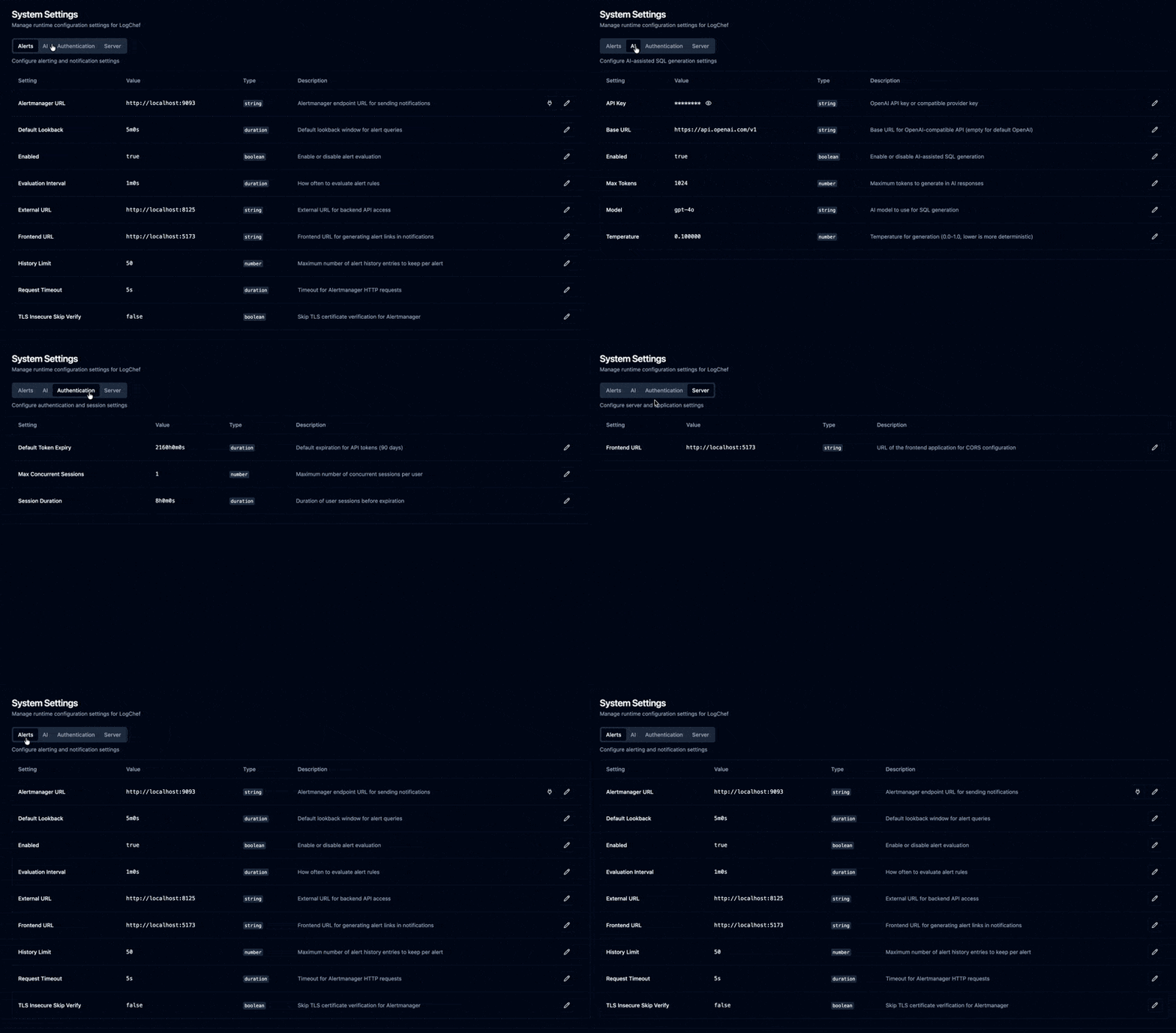
Section titled “Runtime Configuration (Admin Settings UI)”The following settings are managed through the web interface at Administration → System Settings after first boot. You can optionally set initial values in config.toml which will be seeded to the database on first boot.
AI SQL Generation
Section titled “AI SQL Generation”Configure AI-powered SQL generation through the Admin Settings UI:
Settings available:
- Enabled: Enable/disable AI features
- Provider: AI transport to use —
openai(default) orbedrock - Region: AWS region for the
bedrockprovider (e.g.us-east-1); required whenprovider = "bedrock" - API Key: OpenAI API key (marked as sensitive, hidden in UI); used by the
openaiprovider - Base URL: OpenAI-compatible API endpoint (default: https://api.openai.com/v1); used by the
openaiprovider - Model: Model name (e.g., “gpt-4o”, “gpt-4o-mini” for OpenAI; a Bedrock model id / inference-profile ARN such as “anthropic.claude-3-5-sonnet-20241022-v2:0” for Bedrock)
- Max Tokens: Maximum tokens to generate (default: 1024)
- Temperature: Generation temperature 0.0-1.0 (default: 0.1)
Supported Providers:
- OpenAI (
provider = "openai"): Use default base URL (https://api.openai.com/v1) - OpenRouter: OpenAI provider with base URL set to “https://openrouter.ai/api/v1”
- Azure OpenAI: OpenAI provider pointed at your Azure endpoint
- Local Models: OpenAI provider pointed at your local OpenAI-compatible server
- AWS Bedrock (
provider = "bedrock"): Native Bedrock via the unified Converse API. Works across Claude/Llama/Titan/Nova/Mistral. Authenticates through the standard AWS credential chain (environment, shared config, or an IAM role) — no API key is stored in Logchef.
Optional config.toml seeding (first boot only):
OpenAI (or OpenAI-compatible):
[ai]enabled = falseprovider = "openai" # default when omittedbase_url = "https://api.openai.com/v1"api_key = "" # Set via Admin UI after first bootmodel = "gpt-4o"max_tokens = 1024temperature = 0.1AWS Bedrock (credentials via the AWS chain / IAM role, no api_key):
[ai]enabled = trueprovider = "bedrock"region = "us-east-1"model = "anthropic.claude-3-5-sonnet-20241022-v2:0"max_tokens = 1024temperature = 0.1Reasoning-capable Bedrock models (e.g. openai.gpt-5.6-*) accept an optional
reasoning_effort: none, low, medium, high, xhigh or max. Leave it
empty (or omit it) for the model default; other models reject the parameter, so
only set it for models that support reasoning. Reasoning tokens count against
max_tokens, so raise max_tokens when using a higher effort — otherwise the
model can spend its whole budget thinking and return no query.
[ai]enabled = trueprovider = "bedrock"region = "ap-south-1"model = "in.openai.gpt-5.6-luna"reasoning_effort = "high"max_tokens = 4096Note: After first boot, changes to [ai] section in config.toml are ignored. Manage settings via the UI.
Alerting
Section titled “Alerting”Configure real-time log monitoring with email and webhook notifications through the Admin Settings UI. Per-alert recipients and webhook URLs are managed in the alert form.
Settings available:
- Enabled: Enable/disable alert evaluation and delivery
- SMTP Host: Email server hostname
- SMTP Port: Email server port
- SMTP Username: SMTP auth username (optional)
- SMTP Password: SMTP auth password (optional)
- SMTP From: From address for alert emails
- SMTP Reply-To: Reply-To address (optional)
- SMTP Security:
none,starttls, ortls - Evaluation Interval: How often to check all active alerts (e.g., “1m”)
- Default Lookback: Default time range for alert queries (e.g., “5m”)
- History Limit: Number of historical events to keep per alert (default: 50)
- External URL: Backend URL for API access
- Frontend URL: Frontend URL for web UI links in notifications
- Request Timeout: Alert notification request timeout (default: “5s”)
- TLS Insecure Skip Verify: Skip TLS cert verification (dev only)
Optional config.toml seeding (first boot only):
[alerts]enabled = falseevaluation_interval = "1m"default_lookback = "5m"history_limit = 50smtp_host = ""smtp_port = 587smtp_username = ""smtp_password = ""smtp_from = "alerts@example.com"smtp_reply_to = ""smtp_security = "starttls"external_url = ""frontend_url = ""request_timeout = "5s"tls_insecure_skip_verify = falseNote: After first boot, manage all alert settings via Administration → System Settings → Alerts.
For alert configuration examples, notification setup, and best practices, see the alerting feature guide.
Environment Variables
Section titled “Environment Variables”All configuration options set in the TOML file can be overridden or supplied via environment variables. This is particularly useful for sensitive information like API keys or for containerized deployments.
Environment variables are prefixed with LOGCHEF_. For nested keys in the TOML structure, use a double underscore __ to represent the nesting.
Format: LOGCHEF_SECTION__KEY=value
Examples:
- Set server port:
Terminal window export LOGCHEF_SERVER__PORT=8125 - Set OIDC provider URL:
Terminal window export LOGCHEF_OIDC__PROVIDER_URL="http://dex.example.com/dex" - Set admin emails (comma-separated for arrays):
Terminal window export LOGCHEF_AUTH__ADMIN_EMAILS="admin@example.com,ops@example.com" - Set AI API Key:
Terminal window export LOGCHEF_AI__API_KEY="sk-your_actual_api_key_here" - Enable AI features and set the model:
Terminal window export LOGCHEF_AI__ENABLED=trueexport LOGCHEF_AI__MODEL="gpt-4o" - Configure alerting:
Terminal window export LOGCHEF_ALERTS__ENABLED=trueexport LOGCHEF_ALERTS__SMTP_HOST="smtp.example.com"export LOGCHEF_ALERTS__SMTP_PORT=587export LOGCHEF_ALERTS__SMTP_FROM="alerts@example.com"export LOGCHEF_ALERTS__FRONTEND_URL="https://logchef.example.com"
Environment variables take precedence over values defined in the TOML configuration file.
Production Configuration
Section titled “Production Configuration”For production deployments, ensure you:
- Set appropriate
hostandportvalues - Configure a secure
client_secretfor OIDC - Set the correct
redirect_urlmatching your domain - Configure admin emails for initial access
- Adjust session duration based on your security requirements
- Set logging level to “info” or “warn”
- If using AI features, ensure
LOGCHEF_AI__API_KEYis set securely - If using alerting, configure SMTP settings and set
frontend_urlfor correct generator links - Use
smtp_securityset totlsorstarttlsin production
Minimal Production Configuration
Section titled “Minimal Production Configuration”This example shows the essential configuration required to run Logchef. All other settings (AI, alerting, sessions) are managed via the Admin Settings UI.
[server]port = 8125host = "0.0.0.0"http_server_timeout = "30s"
[sqlite]path = "/data/logchef.db"
[oidc]provider_url = "https://dex.example.com"auth_url = "https://dex.example.com/auth"token_url = "https://dex.example.com/token"client_id = "logchef"client_secret = "your-secure-secret"redirect_url = "https://logchef.example.com/api/v1/auth/callback"scopes = ["openid", "email", "profile"]
[auth]admin_emails = ["admin@example.com"]api_token_secret = "your-secret-key-minimum-32-characters-long"
After deployment:
- Login as admin user
- Navigate to Administration → System Settings
- Configure:
- AI tab: Enable AI features and add API key
- Alerts tab: Configure SMTP and notification settings
- Authentication tab: Set session duration and limits
- Server tab: Set frontend URL if needed
If your frontend is served from a different origin before first login, set
LOGCHEF_SERVER__FRONTEND_URL in the environment to ensure auth redirects return to the UI.
See config.toml for a fully commented configuration example.